How to Set Up a SOCKS5 Proxy on Windows, macOS & iOS
Tether Link Utility runs a local SOCKS5 proxy on your Android phone. Any device that supports SOCKS5 proxy settings can use it over the Wi-Fi network the app creates: no separate client app is needed on Windows or macOS, and a lightweight one is needed on iOS. Here is how to set up each platform.
Before you start
- Open Tether Link Utility on the phone and tap START SERVER.
- Connect your laptop or tablet to the Wi-Fi network the app shows under Wi-Fi Network, using the password shown under Wi-Fi Password.
- Note the IP address and port shown in the app. You will enter both in the setup below.
About the port: the app saves the port, so you only enter it once on each device. It changes only if another app on the phone takes it, and the app warns you when that happens. To pick your own, tap Edit on the Port row and enter a number between 1024 and 65535 (1024 to 32767 is less likely to clash). If that port is free, it stays reserved for you until another app starts using it.
Using your phone's own hotspot
If you turn on your phone's system hotspot yourself (Mobile Hotspot on Android, Personal Hotspot on iPhone) instead of letting the app start one, tap WI-FI in the app and save the hotspot's name and password once. They are stored only on your device and the app doesn't change your hotspot. The details are added to the QR code, so other devices can join the network by scanning it. On iPhone, the password is in Settings > Personal Hotspot. When the Android app starts its own hotspot automatically, you can skip this.
Windows
Option A: Firefox (no extension needed)
- Go to Settings → General → Network Settings → Settings.
- Choose Manual proxy configuration.
- Enter the phone's IP under SOCKS Host, the port under Port, and select SOCKS v5.
- Check Proxy DNS when using SOCKS v5 so DNS lookups also go through the proxy.
Option B: Chrome or Edge, via FoxyProxy
- Install the FoxyProxy extension from the Chrome Web Store.
- Add a new proxy: type SOCKS5, host = phone's IP, port = the port shown in the app.
- Switch FoxyProxy to that proxy from its toolbar icon.
Option C (recommended): all apps with sing-box
Firefox and FoxyProxy only send that one browser's traffic through the proxy. To route every app on Windows through it, DNS included, use sing-box (open source, actively maintained) in TUN mode:
- Download the latest Windows release from github.com/SagerNet/sing-box/releases.
- Save the config below as
config.json, replacing the IP and port with the values shown in the app. - Run it from an elevated (Administrator) terminal:
sing-box run --config config.json
macOS
Option A: native Network settings
- Open System Settings → Network.
- Select the Wi-Fi network you're connected to (the one the phone created) and click Details…
- Go to Proxies and turn on SOCKS Proxy.
- Enter the phone's IP address and port, then click OK.
No third-party app is needed. Note that apps which ignore the system proxy setting, and DNS lookups, are not sent through the proxy this way.
Option B (recommended): all apps with sing-box
To route every app through the proxy, DNS included, run sing-box in TUN mode instead of the native setting above.
Easiest way: download our wrapper script. It checks for Homebrew, installs sing-box if needed, asks for your phone's IP and port, and runs everything in the background (the Terminal window minimizes and comes back only if something goes wrong).
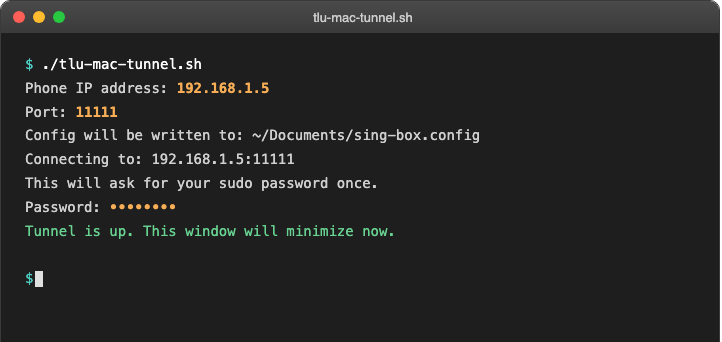
Unzip it, then in Terminal: chmod +x tlu-mac-tunnel.sh && ./tlu-mac-tunnel.sh
See it in action
Here is the script running on a Mac: while the phone shares its mobile data, a 1GB test file is downloaded through the connection, and the app's counter shows the traffic routed through the phone.
Or set it up by hand:
- Install via Homebrew:
brew install sing-box - Save the config below as
~/config.json, replacing the IP and port with the values shown in the app. - Run it (it needs
sudobecause it creates a virtual network interface and changes routing):sudo sing-box run --config ~/config.json - Turn off the native SOCKS Proxy setting from Option A if you had it on; sing-box's TUN mode replaces it.
sing-box config (works for both Windows and macOS, just swap the IP and port). Leave interface_name unset so it picks an available interface automatically:
{
  "dns": {
    "servers": [
      { "type": "udp", "tag": "remote", "server": "8.8.8.8", "detour": "phone-socks5" },
      { "type": "local", "tag": "local", "detour": "direct" }
    ],
    "final": "remote"
  },
  "inbounds": [
    { "type": "tun", "tag": "tun-in", "address": ["172.19.0.1/30"], "mtu": 1500,
      "auto_route": true, "strict_route": true, "stack": "system" }
  ],
  "outbounds": [
    { "type": "socks", "tag": "phone-socks5", "server": "PHONE_IP", "server_port": PHONE_PORT, "version": "5" },
    { "type": "direct", "tag": "direct" }
  ],
  "route": {
    "rules": [ { "ip_cidr": ["PHONE_IP/32"], "outbound": "direct" } ],
    "final": "phone-socks5",
    "auto_detect_interface": true,
    "default_domain_resolver": "remote"
  }
}
Replace both PHONE_IP and PHONE_PORT with the values shown in the app, including the PHONE_IP/32 route rule. That rule sends the connection to the phone itself directly instead of looping it back into the tunnel. The app supports SOCKS5 UDP ASSOCIATE, so DNS and QUIC/HTTP3 traffic can also use the proxy.
iOS
Option A: Shadowrocket (paid, one-time purchase)
- Open Shadowrocket and tap the + button in the top right.
- Choose type Socks5.
- Enter the phone's IP as the address and the port shown in the app.
- Save, then tap the toggle at the top to connect.
Option B: Potatso Lite (free)
- Open Potatso Lite and add a new proxy profile.
- Select SOCKS5, enter the IP and port, and save.
- Allow the VPN profile when iOS asks. This is how Potatso sends traffic to the SOCKS5 proxy, since iOS has no system-wide SOCKS5 setting like macOS does.
DNS tip: where the option exists, let DNS lookups go through the proxy as well (Firefox's "Proxy DNS when using SOCKS v5", Shadowrocket's default behavior). sing-box's TUN mode handles this for every app automatically.
Android to Android is simpler
If both devices are Android, tap Scan QR Code · Connect to Server on the other phone and scan the QR code shown on the server phone. The QR code contains the Wi-Fi details and the proxy address, so the phone joins the Wi-Fi and routes its traffic through the proxy using Android's VpnService. On Android 10 and later, a system prompt may ask you to confirm the Wi-Fi connection.
Data used by connected devices counts toward the server phone's mobile plan, so check your carrier's tethering terms.
Tether Link Utility
An Android app that shares your phone's mobile data with your other devices through a local SOCKS5 proxy. No root, no account, no remote server.
See how it works