Hotspot Blocked? Use Your Phone's Internet on a Windows PC (2026)
Short answer: install Tether Link Utility on your Android phone, tap START SHARING, join the phone's Wi-Fi from the PC and run one setup file. The PC then uses your phone's mobile data for every app, without the phone's built-in hotspot. No root, free for 1 device. Data still comes from your plan, and results can vary by carrier.
Before you start
- An Android phone with mobile data.
- A Windows PC that can join a Wi-Fi network.
- The setup file, TLU-Windows-Setup.cmd. Download it now if the PC still has internet. If it does not, download it on the phone and send it to the PC by Bluetooth or USB cable.
The steps
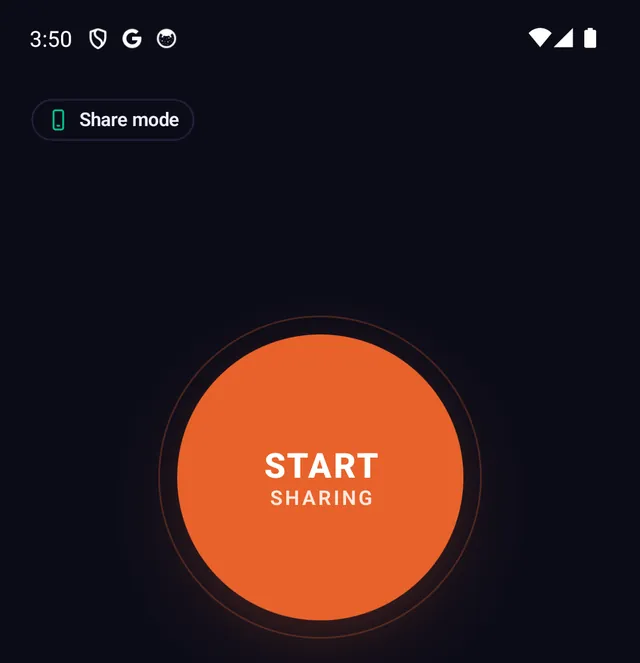
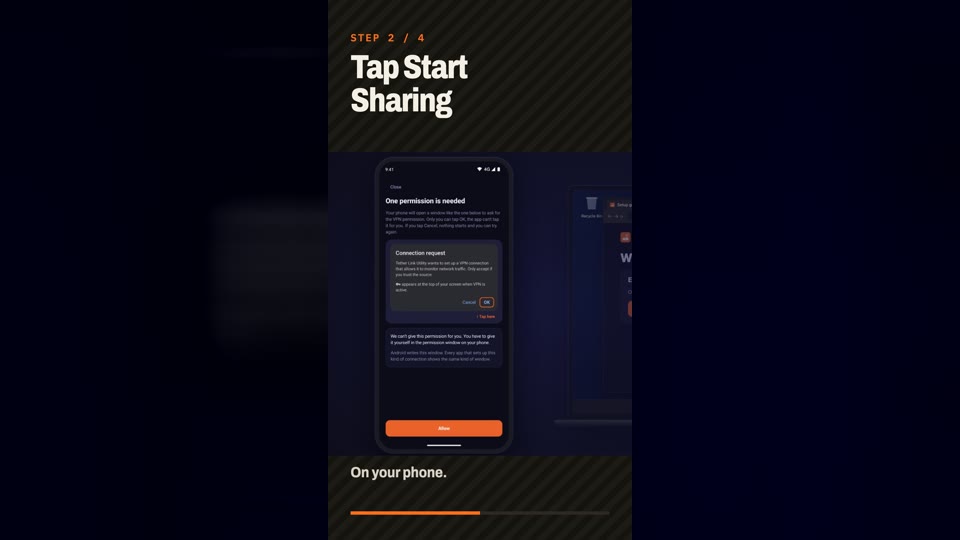
- Start sharing on the phone Open Tether Link Utility and tap START SHARING.
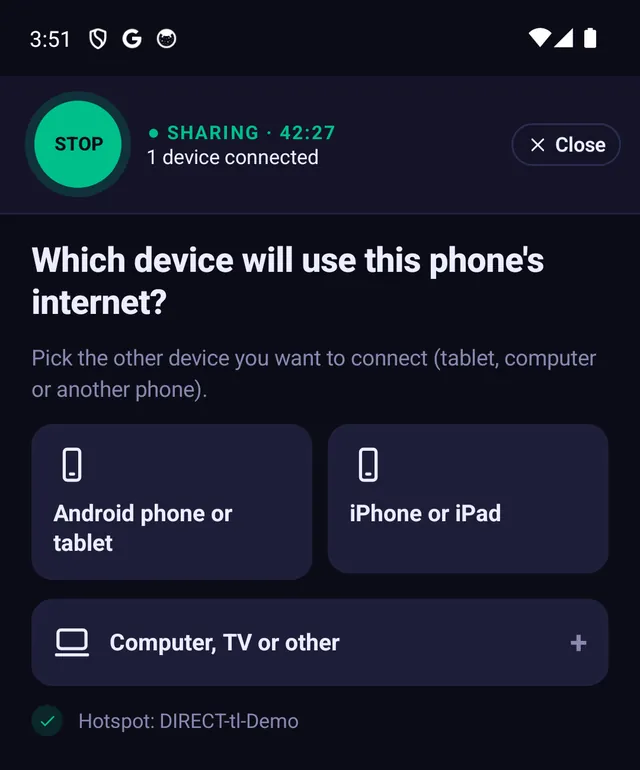
- Choose Computer When the app asks which device will use the phone's internet, tap Computer, TV or other.
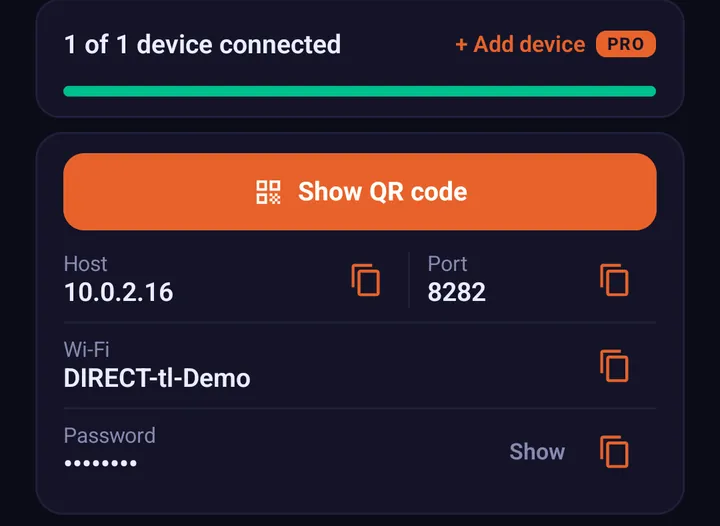
- Join the phone's Wi-Fi on the PC Pick the network name shown in the app and type the password shown. The PC may say "No internet". That is normal for now.
- Run the setup file Double-click TLU-Windows-Setup.cmd. If Windows asks Are you sure you want to run this software?, click Run. If it shows Windows protected your PC, click More info, then Run anyway.
- Type the two numbers Press Enter to accept the suggested address, or type the host shown in the app, then type the port.
- Wait for Connected When the window says Connected. Keep this window open., you are online. Close the window to stop.
What this does and does not do. It does not create extra data. Everything the other device uses still comes out of your mobile plan, and your carrier's terms for sharing data still apply. What changes is how the data is shared: through a local proxy on your phone instead of the phone's built-in hotspot feature. Results can vary by carrier and plan.
If something does not work
- Still no internet: check the app still says sharing and shows your PC as connected, then run the setup file again.
- Only want the browser: the Windows section of the full guide shows how to use Firefox on its own.
- Do not use Windows Settings, Proxy. It will not work with this app.
Frequently asked questions
Can I use my phone's internet on a Windows PC if hotspot is blocked?
Yes. Tether Link Utility shares your phone's data through a local proxy instead of the built-in hotspot, and a small setup file connects the PC so every app uses it. Your carrier's terms still apply and results can vary by carrier.
Do I need to install anything on the PC?
You download one setup file and double-click it. It asks for the two numbers shown in the app and connects. Download it while the PC still has internet, or on the phone and send it to the PC by Bluetooth or USB cable.
Does it work for every app or only the browser?
The setup file covers every app on the PC. If you prefer, Firefox can use the proxy on its own for browser-only use.
Why does the PC say No internet?
That message is normal on the phone's Wi-Fi. Once the setup file says Connected, apps work.
Is it free?
Free for 1 device at a time. Pro shares with up to 5 devices for $3.99 a month or $19.99 a year.
Tether Link Utility
Bypass carrier hotspot limits. An app that shares your phone's mobile data with your other devices through a local SOCKS5 proxy. No root. No tether fees. Free for 1 device, Pro for 5 devices ($3.99 a month or $19.99 a year).
See how it works